Wedding Guest List & Seating Chart Planner: RSVPs, Meals, Addresses & Thank-Yous (Excel + Google Sheets)
$15.00 USD
Buy on PayhipDigital download: Excel .xlsx, works in Google Sheets. Nothing is shipped.
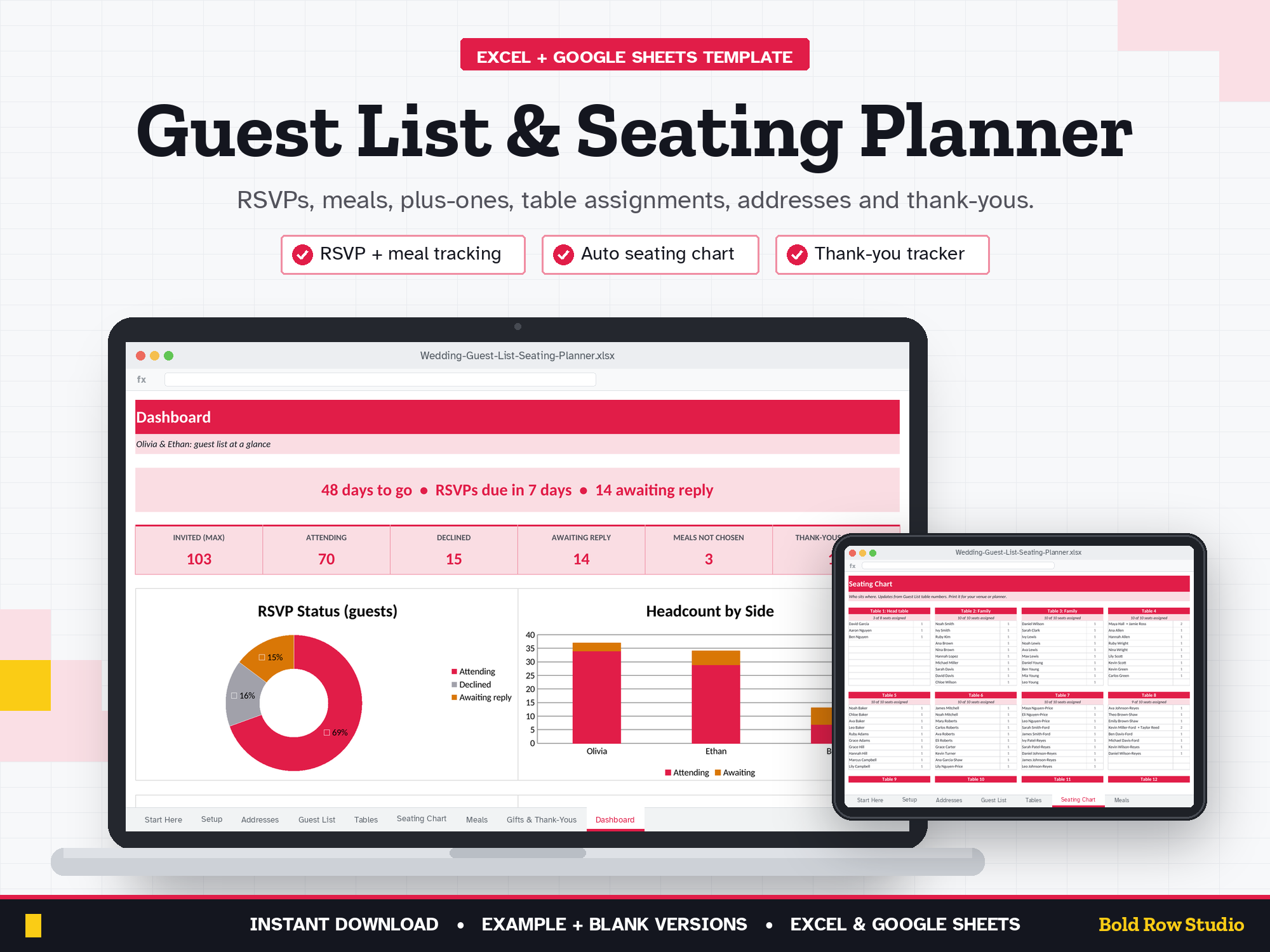
The Wedding Guest List & Seating Planner is a spreadsheet template for Microsoft Excel and Google Sheets that tracks RSVPs, meal choices, plus-ones, table seating, invitation addresses and thank-you notes. It's for engaged couples and wedding planners who want the whole guest list in one organized file (it doesn't do budget tracking).
The Wedding Guest List & Seating Planner is a spreadsheet template for Microsoft Excel and Google Sheets that tracks RSVPs, meal choices, plus-ones, table seating, invitation addresses and thank-you notes. It's for engaged couples and wedding planners who want the whole guest list in one organized file (it doesn't do budget tracking).
WHAT'S INCLUDED
- Wedding-Guest-List-Seating-Planner_BLANK.xlsx: ready for your guests
- Wedding-Guest-List-Seating-Planner_EXAMPLE.xlsx: a sample 48-invitation wedding so you can see how it works
- Download guide (PDF) with step-by-step Excel and Google Sheets setup
9 TABS
Start Here (built-in quick-start notes) · Setup · Addresses · Guest List · Tables · Seating Chart · Meals · Gifts & Thank-Yous · Dashboard
Room for 200 invitations, 400 guests, 30 tables and 300 gifts. No budget tracking: this one is all about your people.
KEY FEATURES
- Guest list: side, group, adult/child, RSVP, meal choice, dietary notes, plus-one allowed / name / coming / meal, and table number
- Live headcount: invited (max), attending, declined and awaiting reply, with plus-ones counted correctly
- Seating chart that builds itself: printable table cards list who sits where, with seats assigned vs. table size
- Tables tab: seats, assigned, confirmed and seats left, with "Over by" warnings
- Meals: totals for your caterer, a table-by-meal grid and every dietary note in one list
- Address list: one row per invitation with save-the-date and invite sent, replies so far and a ready-to-print envelope line
- Gifts & thank-yous: who gave what, note due date (based on before/after the wedding) and Sent / Due soon / Overdue
- Dashboard: countdown, RSVP progress and 4 charts
HOW IT WORKS
- Buy and download instantly: your download page opens right after checkout, and the link is also emailed to you.
- On a computer, open the BLANK file in Microsoft Excel, or upload it to Google Drive and open it with Google Sheets (the PDF guide shows both).
- Start on the Start Here tab and type your numbers into the blue cells. The grey formula cells, summaries and dashboard charts update automatically.
- Open the EXAMPLE file any time to see how a filled-in version looks.
COMPATIBILITY
- ✔ Microsoft Excel (Windows and Mac desktop, Microsoft 365)
- ✔ Google Sheets (free): upload the .xlsx to Google Drive, then Open with Google Sheets. Easy to share with your partner or planner.
- ✘ Not designed for Apple Numbers or phone screens. A computer is recommended.
FREQUENTLY ASKED QUESTIONS
Q: Does it work in Excel and Google Sheets?
A: Yes. It works in Microsoft Excel (Windows or Mac desktop, or Microsoft 365) and in Google Sheets, which is free with a Google account. It isn't designed for Apple Numbers.
Q: Should I use Google Sheets or Excel?
A: Either works: the formulas, dropdowns and charts work in both. Choose Excel if you want to keep the file on your computer. Choose Google Sheets if you want a free, browser-based option. It's also the easy way to share the file with your partner, family or planner. For Google Sheets, upload the .xlsx file to Google Drive, right-click it and choose Open with > Google Sheets, then File > Save as Google Sheets.
Q: Can I use it on my phone or tablet?
A: It's designed for a computer screen, not a phone. Phones often can't open .xlsx downloads, so download and set it up on a computer. Once it's saved as a Google Sheet, you can open it in the Google Sheets mobile app to check your numbers, but a computer is best for setup and data entry.
Q: How do I download it?
A: Right after checkout your download page opens, and the download link is also emailed to you. Download all the files on a computer, then follow the PDF guide to open the BLANK file in Excel or Google Sheets.
Q: Can I customize it?
A: Yes. Enter your names, wedding date, meal options and guest groups in the blue cells on the Setup tab and the rest of the workbook updates. Formula cells are locked without a password so they can't be overwritten by accident. To change formulas or the layout, unprotect the tab: Review > Unprotect Sheet in Excel, or Data > Protect sheets and ranges in Google Sheets.
Q: Can I get a refund?
A: Yes, within 14 days of purchase, in two cases: a file has a problem I can't fix, or you bought the same product twice by mistake. Email todorgan@gmail.com with your order details.
GOOD TO KNOW
- This is a digital product. Nothing will be shipped.
- Makes a thoughtful engagement gift.
- For personal use. Please don't share or resell the files.
- Questions or a problem with a file? Email todorgan@gmail.com.
AI disclosure: this template was designed with the help of AI tools. The formulas, layout and example data were reviewed and tested before release.